Development
AI Usage Limits
by 2kit
Overview
Open source: https://github.com/lenadweb/stream-deck-ai-limits
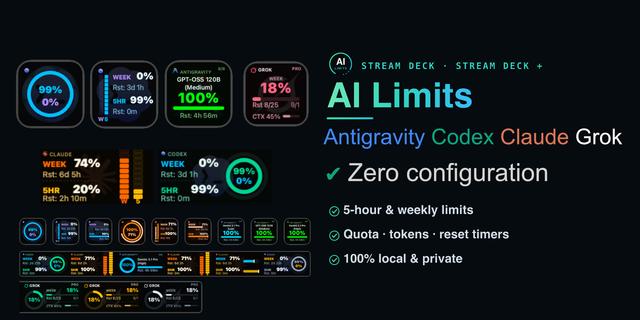
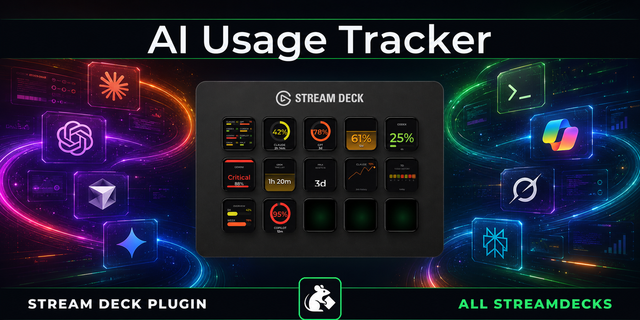
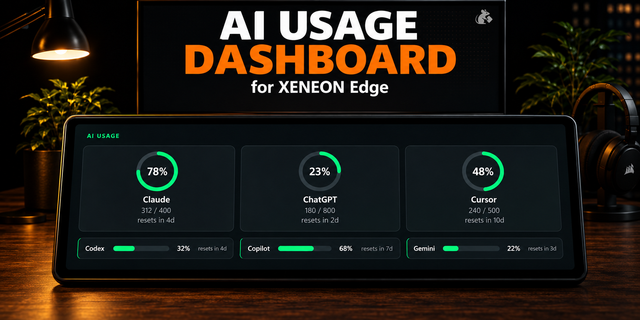
AI Usage Limits gives you a live view of your AI usage limits directly on your Stream Deck keys and dials. It tracks quotas and rate limits for Claude Code, Codex (ChatGPT), Antigravity, Gemini CLI, MiniMax and OpenRouter, so you can see how much of your session, daily or weekly quota is already used and when it resets - without opening a terminal, a dashboard or a billing page.
What it does:
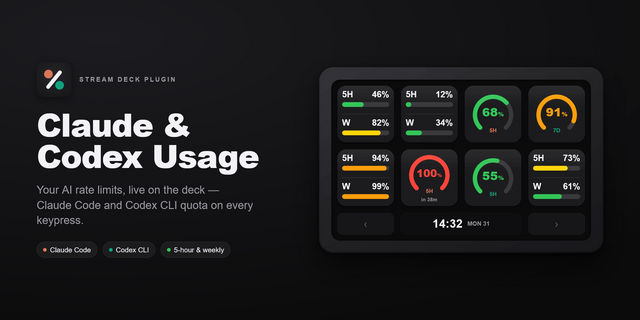
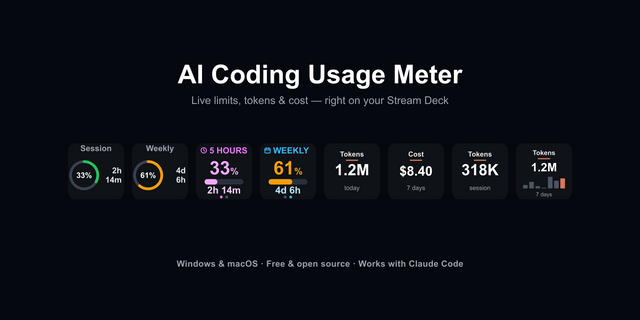
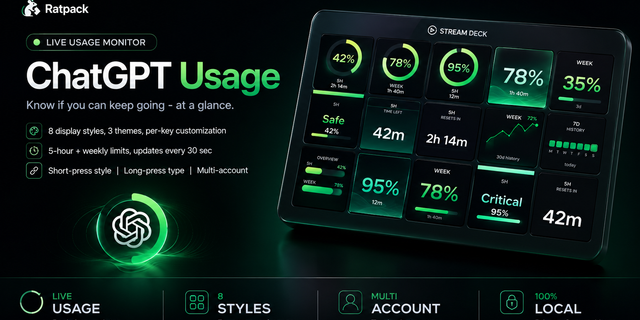
Shows AI usage limits, percentages and reset countdowns on a single key, updated automatically.
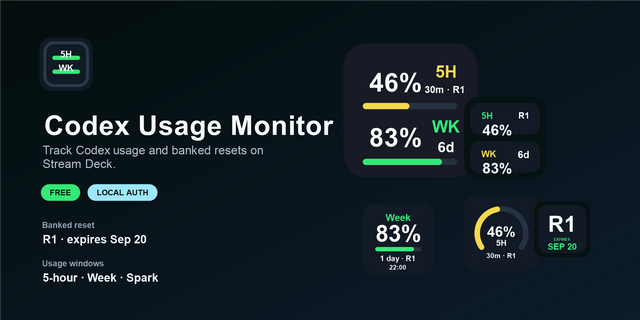
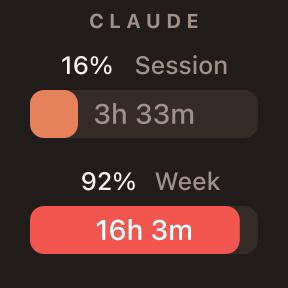
Two layouts per key: Bars for two metrics at once, or Ring for one large gauge with the value and reset countdown inside it.
Lets every key pick its own metric, so you can place the same action several times, for example Claude session next to Claude weekly.
Includes provider actions for Claude, Codex, Antigravity, Gemini CLI, MiniMax and OpenRouter.
Adds an optional CodexBar backend action for advanced users, which displays any provider you have configured in CodexBar.
Supports automatic periodic refresh plus manual refresh on demand.
Works with Stream Deck dials (Encoder): push/touch/rotate can trigger refresh.
How it looks:
Color-coded usage bars turn amber and red as you approach the cap, with countdowns like 3h 33m or 4d 3h.
Ring keys put one metric front and centre, readable across the room.
Each provider has its own visual theme for quick recognition; the provider name can be hidden for a cleaner key.
If data is temporarily unavailable, the key shows a neutral placeholder instead of stale values, and a window your plan does not report reads "no data" instead of a misleading 0%.
Getting started:
Install the plugin and restart Stream Deck if needed.
Drag the provider action you want onto a key or dial.
Press the key once to trigger the first fetch.
Make sure you are logged into the related service locally.
Configuration:
Claude: choose the 5-hour session window, the 7-day window or the 7-day Sonnet window for each section.
Codex: choose session usage, weekly usage, usage limit resets or credits balance, or hide the bottom section.
Gemini CLI and Antigravity: open action settings and choose the models to display (or keep the overall view).
MiniMax: enter your API key and choose daily or weekly usage.
OpenRouter: enter your API key and choose the key limit or spend by day, week, month or all time.
CodexBar backend (optional, for advanced users): start codexbar serve, then load enabled providers from the action settings and choose a provider, account, quota windows and tile theme. Extra metrics include credits, pace, identity and data confidence, plus API-key budget, spend and rate limit for OpenRouter.
Keys with the same API key share a single request, so extra keys cost no extra API calls.
Other providers rely on locally available auth/session data from their respective tools/apps.
Usage controls:
Key press: force refresh immediately.
On dial-enabled devices: push/touch/rotate also refreshes.
Background refresh keeps values reasonably up to date between manual checks, and cached values are drawn instantly when you switch pages or profiles.
Notes:
If local auth data or API access is missing, that provider may not return values until credentials are available.
Antigravity usage depends on its local process being accessible.
The CodexBar backend is an optional extra for advanced users: it connects only to a local 127.0.0.1 CodexBar server and is intended for macOS. Every other provider works without it.
OpenAI currently exposes only a weekly window on several Codex plans; a key set to the session limit shows "no data" until the 5-hour window returns.
Works on macOS and Windows. On macOS, Claude credentials are read from the Keychain; on Windows they are read from the credential file written by Claude Code.
Added
Display size setting. Every provider action now has a Size setting with four steps — Compact, Default, Large and Extra Large. It resizes the whole key at once: labels, percentages, reset countdowns, progress bars, the ring gauge and the provider name. Extra Large draws a 32px progress bar and 17px labels where Default draws 24px and 12.5px.
Size is set per key, so a wall of keys can mix sizes: one large key for the limit you watch, smaller ones next to it. It applies to Stream Deck keys and to Stream Deck+ dials, in both the Bars and the Ring layout, and to every provider including the optional CodexBar backend.
Changed
A larger size is not a plain zoom. As the type grows, the margins and the gaps between elements tighten to pay for it, so the progress bars run nearly edge to edge instead of keeping padding that only a smaller type needed.
Spacing was reworked at every size. Elements are now stacked and centred by their actual ink, so each key keeps balanced air above and below. Keys with the provider name hidden, keys showing a single metric and Ring keys used to sit off-centre; they no longer do.
Version 0.1.24
Sep 2, 2026
Details
Type
Development
OS
Mac
Windows
Compatibility
Stream Deck 6.9 or later
Size
253.9 KB
Version
0.1.24
Language
English
Support
Profiles
No
Dial support
Yes
Additional links
You might also like