Monitoring
Browser
Overview
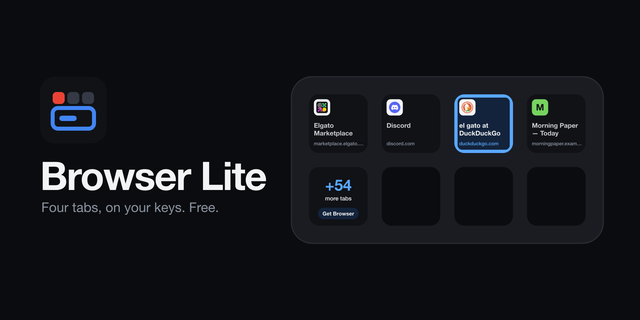
Browser puts the tabs of your browser on your Stream Deck. Every key is a tab: its icon, its title, its domain. The tab in front wears a blue frame you can see from any angle. Tap one and your browser switches to it. Hold one and it closes.
It follows the browser you are actually using — Chrome (tested on Chrome, should work also on Safari, Brave, Edge or Vivaldi) — and switches along when you do. There is no extension to install in any of them, and nothing to sign in to.
AS MANY KEYS AS YOU GIVE IT — Put Tabs on one row, a block, or the whole deck. It fills the keys in reading order: five tabs on a Mini, seven on a Neo, fourteen on an MK.2, thirty-one on an XL. With more tabs than keys, the last key pages through them — tap for the next page, hold for the one before — and the strip always follows the tab you are on.
HOLD TO CLOSE, AND SEE IT COMING — A hold fills a red bar along the top of the key, and the tab closes when the bar is full. Let go before that and the tab stays open. A tap you make shows on the deck at once, before the browser has even caught up.
NEW TAB — A key of its own. Copy a link anywhere, tap it, and the link opens in a new tab; with no link on the clipboard you get a blank one. Hold it for a blank tab either way. The clipboard is read at that moment and at no other.
THE ADDRESS ON THE NEO'S INFOBAR — On a Stream Deck Neo, put Address bar on the Infobar: the site's icon, the domain large and the path under it, across the whole bar.
SEE THE PAGE, NOT JUST ITS NAME — Turn on page previews and each key carries a small picture of its page behind the title: live for the tab in front, as you last saw it for the others. The picture is of the browser's own window, so nothing in front of it ends up on your keys. It is taken on your Mac, kept in memory and sent nowhere. Previews need macOS's Screen Recording permission for Stream Deck, and Browser only asks for it if you turn them on.
A PROFILE OF ITS OWN — We suggest a Stream Deck profile just for your browser. In Stream Deck's Preferences, under Profiles, pick your browser as that profile's application, and Stream Deck switches to it by itself whenever the browser comes to the front: your tabs are on the keys exactly when you are browsing, and your other keys are back when you are not. It is a suggestion, not a requirement. Tabs works on any profile, page or folder, beside whatever else you keep there.
IT TELLS YOU WHAT IT NEEDS — The first time, macOS asks whether Stream Deck may control your browser. Say yes and the tabs appear. If the dialog does not come, quit your browser and open it again. If you said no, the keys say so, and a tap opens the right page in System Settings. No browser open? A tap starts one.
PRIVATE BY CONSTRUCTION — No account, no analytics, no server of ours. Site icons are fetched from the sites you already have open, not from an icon service. Nothing about your tabs leaves your Mac.
TRY IT FIRST — Browser Lite is the free edition: your first four tabs, tap to switch. Find it on the Marketplace under the same name.
Firefox cannot be controlled this way and is not supported.
macOS 12 or newer, with the Stream Deck app 7.6 or newer. Works on any Stream Deck with keys; the address bar needs a Stream Deck Neo.
First release.
Tabs: every key is a tab of the browser you are using. Tap to switch, hold to close, and the last key pages when there are more tabs than keys.
Works with Chrome, Safari, Brave, Edge and Vivaldi on macOS, with no browser extension.
New tab: opens the link on your clipboard, or a blank tab.
Address bar for the Stream Deck Neo's Infobar.
Optional page previews: a small picture of each page on its key.
Says what it needs: if macOS has not been allowed to let Stream Deck control your browser, the keys say so and a tap opens the right Settings page.
Version 1
Oct 12, 2026
Details
Type
Monitoring
Productivity
Utilities
OS
Mac
Compatibility
Stream Deck 7.6 or later
Size
108.89 KB
Version
1
Language
English
Support
Profiles
No
Dial support
No
Neo Infobar support
Yes
You might also like