Monitoring
Calendar for Outlook
Overview
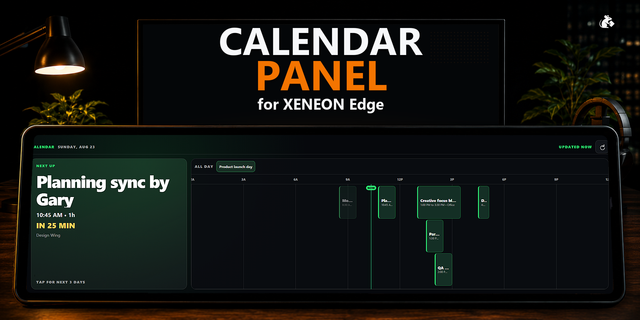
Use your personal Outlook calendar to your XENEON EDGE with Calendar for Outlook.
View upcoming events, manage your schedule, respond to invitations, and open meeting links through a clean touchscreen interface designed for quick access throughout the day.
Calendar Views
Navigate your schedule using four familiar calendar layouts:
Day
Week
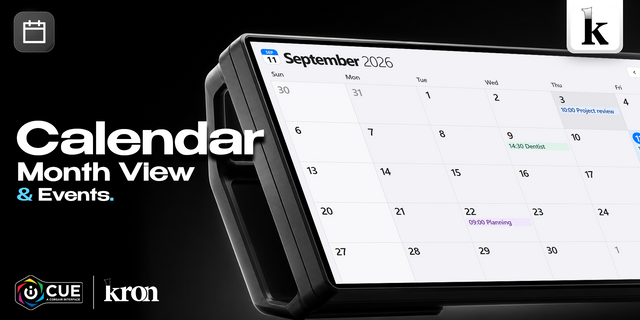
Month
Year
Smaller widget sizes use streamlined layouts that keep your next events visible without unnecessary controls.
Work & School Accounts Your organization may require IT approval before your email can connect. If Microsoft displays “Need admin approval,” your IT team must approve access. Respawn cannot override your organization’s restrictions.
Send your IT team our IT approval and permissions guide before purchasing. This is found on the "Setup Guide" button in the product details page. It explains the requested permissions, where your data goes, and how to approve the app.
Personal Microsoft accounts support Outlook.com mail and calendars without organizational admin approval. Microsoft may still ask you to accept permission prompts. Teams features require a supported work or school account.
We are a verified Microsoft publisher and this application is approved from Microsoft. All data is local and Respawn Icons has no visibility into any user data.
Microsoft Account Connection
Select Add Account, sign in with Microsoft through your default browser, and approve the requested permissions.
This release supports personal Microsoft accounts with Outlook calendars, including Outlook.com, Hotmail, Live, and MSN addresses. Addresses from competing consumer email providers are not supported.
Multiple supported accounts can be connected and managed independently. Saved connections are designed to persist across restarts and compatible widget updates, although Microsoft may occasionally require you to sign in again.
Create and Manage Events
Create events directly from your XENEON EDGE.
Supported event controls include:
Event titles and descriptions
Start and end times
Calendar selection
Locations
Guest invitations
Deletion of eligible events
Drag-and-drop rescheduling of eligible events
Existing editable events can be moved to another time by pressing and dragging them across the Day or Week calendar.
Invitations and Meetings
Invitations display their current response status using distinct visual treatments.
Open an invitation to:
Accept
Respond Maybe
Decline
Review event details
Open supported meeting links
Continue managing the event in Outlook
Successfully declining an invitation removes it from the widget’s calendar view. Supported meeting links open in your computer’s default browser.
Calendar Customization
Choose individual colors for connected calendars and control which calendars appear.
Light and dark appearance modes are available.
Event Reminders
Optional reminders display approximately 15 minutes before eligible scheduled events, showing the event name, starting time, and available actions.
Privacy and Security
Users sign in directly on Microsoft’s website. The widget never receives or stores Microsoft passwords.
Saved authorization tokens are encrypted on your device. Our sign-in service processes tokens during connection and renewal and temporarily stores encrypted sign-in handoffs.
Connected accounts can be removed from the widget at any time.
Disclaimer
Calendar for Outlook is independently developed and distributed under Respawn Icons. It is not endorsed by, sponsored by, or affiliated with Microsoft or CORSAIR.
Microsoft, Outlook, Hotmail, MSN, Microsoft To Do, Teams, CORSAIR, and XENEON EDGE are trademarks of their respective owners.
This is a BETA product. While thoroughly tested, it may contain undiscovered issues.
Version 1.5 - Minor Update
Added vertical support
Added additional navigation for small and medium sizes
Added multiple language support
Version 1.5
Oct 15, 2026
Details
Type
Monitoring
Productivity
Utilities
Device
XENEON EDGE
OS
Windows
Size
25.6 KB
Version
1.5
Language
Chinese (Simplified)
French
German
Italian
Japanese
Korean
Russian
Spanish
Support
Dashboard Sizes
Extra large
Large
Medium
Small
Recommended Orientation
Horizontal
Vertical
Interactive
Yes
You might also like
-thumbnail-optimized-70c35d7a-a6e5-40ab-9ea7-e94ae4542f3f.png)
-thumbnail-optimized-6d8cabc4-0caf-4972-85eb-570890ca7c9b.png)