Gaming
Display Layout Switcher
by GRAMSHIFT
Overview
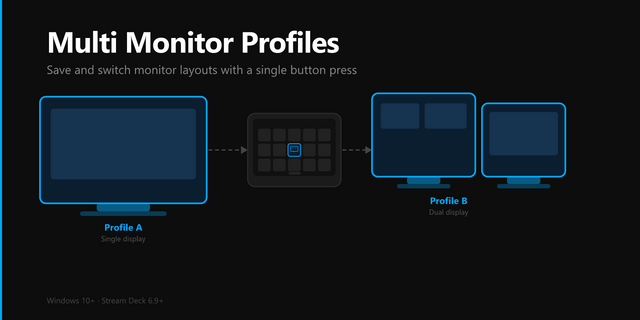
Switch your dual monitor or multi-monitor layout, change the projection like Windows + P (Win+P), and turn one monitor off and back on, each with one Stream Deck key on Windows. Save each setup once as a monitor profile, such as Desk, Gaming, Streaming or TV: which displays are on, their positions, resolution, refresh rate (Hz), orientation, HDR and the primary (main) display.
Toggle Display turns your second monitor (or any one) off for a game, and back on with the layout as it was, the main display included. Set Projection puts the four Win+P modes on keys: PC screen only, Duplicate (mirror), Extend or Second screen only. Both work straight from your current setup. After every change the key counts down 15 seconds: press it once more to keep the new layout, or simply wait and the previous layout comes back by itself, even when a screen went black.
Features
Switch Profile: one key per saved layout. The key shows ACTIVE when that layout is in use
Save Profile: saves the current layout under the key's name, rotation and HDR included
Cycle Profiles: steps through the layouts you choose with one key
Set Primary: makes one monitor the main display and keeps the others where they are
Set Projection: the four Windows + P modes, each on a key. The key shows ACTIVE for the mode in use (desktop PC: the one screen that key set)
Toggle Display: turns one monitor off while the other screens stay as they are. Pressed again, the layout comes back as it was when the other screens are unchanged. Finds the monitor on another port too. Can also only turn off or only turn on
Layout picture: Save, Switch and Cycle keys can draw their layout, each screen at its place and size, the main display in blue with its taskbar, an unplugged monitor dashed in red. Choose it in the key's settings
Safe switching: two presses by default (the first only asks; one press can be chosen). The 15-second countdown brings the previous layout back by itself, also after a crash when the plugin restarts within 2 minutes
Whole layouts only: when a monitor of a layout is unplugged, the key names it and your screens stay as they are
English and Japanese
Made for
Gaming: turn off the second monitor for a game and bring it back afterwards
Streaming and work: one layout for each, one key each
TV and couch: switch to the TV only, then back to the desk
Presentations: duplicate your screen to a projector or a meeting room display
Laptop with a dock: second screen only, or extend across every monitor
Vertical monitors: rotation is part of each saved layout
FAQ
Can I turn off my second monitor with one key? Yes. Put Toggle Display on a key and pick the monitor. Press it again and it comes back as it was, if the other screens are unchanged.
Is there a Stream Deck key for Win+P? Yes, Set Projection: PC screen only, Duplicate, Extend or Second screen only. It has the same 15-second countdown as every change.
What happens if a monitor stays black after a switch? Wait for the countdown: after 15 seconds the previous layout comes back.
Does it need administrator rights? No. It runs as your user.
Does it work on Mac? It is made for Windows 10 and 11.
Privacy
Runs entirely on your PC. No account, no online service, no telemetry.
Limitations
Display scaling, color profiles, night light and brightness are not part of a layout; Windows keeps those per monitor
Set Projection uses the last layout of that kind Windows remembers. On a desktop PC, PC screen only and Second screen only show ACTIVE while the one screen that key set is in use
Toggle Display: other screens changed while it was off stay as they are. Two identical monitors on new ports: pick the monitor on the key again
Not on the lock screen or in some remote desktop sessions
Requirements
Windows 10 or later, Stream Deck app 6.9 or later
Idea or bug? Use the Support link. Every message is read.
New Set Projection action: PC screen only, Duplicate, Extend or Second screen only on a key, like Windows + P, and new Toggle Display action to turn one monitor off and back on in its place (the whole layout as it was when the other screens did not change; also on another port); both count down 15 seconds and go back by themselves unless kept. Save, Switch and Cycle keys can now draw their saved layout (choose it in the key's settings; keys you already have look the same).
Version 1.1
Oct 16, 2026
Details
Type
Gaming
Productivity
Utilities
OS
Windows
Compatibility
Stream Deck 6.9 or later
Size
837.52 KB
Version
1.1
Language
English
Japanese
Support
Profiles
No
Dial support
No
Neo Infobar support
No
Additional links
You might also like