Monitoring
Gridline Dash
Overview
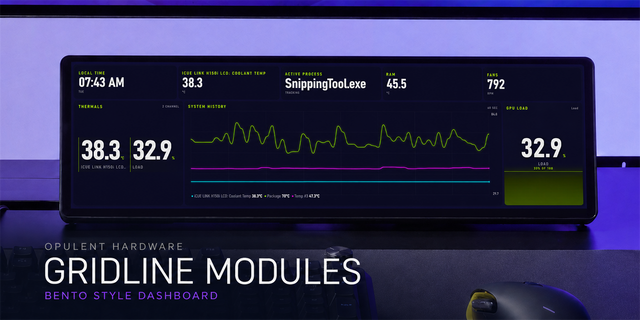
A live sensor HUD for Xeneon Edge with FPS and active-process tracking as a bento style dashboard
Gridline Dash by OPULENT HARDWARE
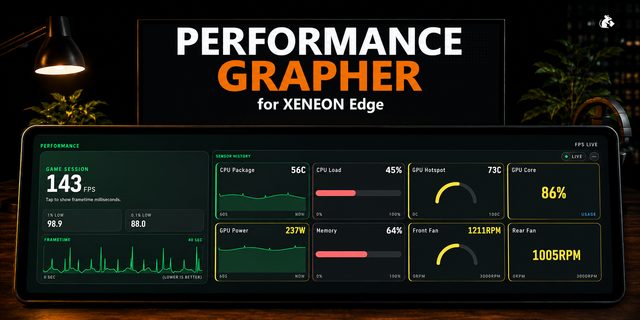
Gridline Dash displays real-time system telemetry; CPU and GPU temperatures, load percentages, clock speeds, fan RPM, FPS, and any other sensor your iCUE Sensors plugin can read — directly on your iCUE Xeneon Edge LCD. Six configurable sensor bento style slots, a full-width bar with dynamic color thresholds, and a live FPS counter with active game detection give you a complete system picture without touching your PC.
How It Works
The widget reads sensor data through the iCUE Sensors data provider plugin and frame rate data through the iCUE FPS data provider plugin. Assign any sensor to any bento style slot in the widget settings, set your own labels, and Gridline Dash becomes yours. The bar gradient shifts from your chosen color to orange to red based on warning and critical thresholds you define — so context is built into the reading.
Getting Started
Install Gridline Dash — drag the widget into the installation area or select it via the file explorer.
Open widget settings and assign sensors to the five strip slots, center panel, load bar, and right panel under Sensor Settings.
Adjust bar warning and critical thresholds, sensor names, font sizes, corner radius, and accent color to match your setup.
What's Included
Gridline Dash widget
Five top-strip sensor slots with custom labels
Center panel with large readout and configurable max value
Full-width load bar with dynamic color selection → orange → red gradient based on user-defined thresholds
Right panel temperature or sensor readout
Live FPS counter with active process name detection (slot 5 or toggle off for a fourth sensor slot)
Automatic temperature unit detection (°C / °F follows your iCUE preference)
Show Branding toggle — hide the OPULENT HARDWARE footer to expand card height for multi-widget bento layouts
Corner Radius slider for sharp or rounded card edges
Full accent color, text color, background color, and transparency customization
Bahnschrift Condensed typography (Windows built-in, no download required)
Troubleshooting
If sensor slots show dashes, confirm the iCUE Sensors data provider plugin is available and re-open widget settings to re-assign your sensors. If FPS reads zero, confirm the iCUE FPS data provider plugin is installed and that a game is running in the foreground — iCUE can only read FPS from supported titles.
Note
Part of the Gridline series by Opulent Hardware — check the profile for more Gridline widgets to mix, match and complete your Xeneon Edge dashboard
Gridline Dash and Gridline Modules widgets are available separately.
Initial public release of Gridline Dash—a customizable Xeneon Edge sensor HUD featuring live system readings, FPS and process tracking, configurable thresholds, responsive typography, and extensive visual personalization.
Version 1.6
Aug 21, 2026
Details
Type
Monitoring
Device
XENEON EDGE
OS
Windows
Size
56.29 KB
Version
1.6
Language
English
Support
Dashboard Sizes
Extra large
Large
Medium
Small
Recommended Orientation
Horizontal
Interactive
No
You might also like