Productivity
Monitor Input Keys for Windows
by GRAMSHIFT
Overview
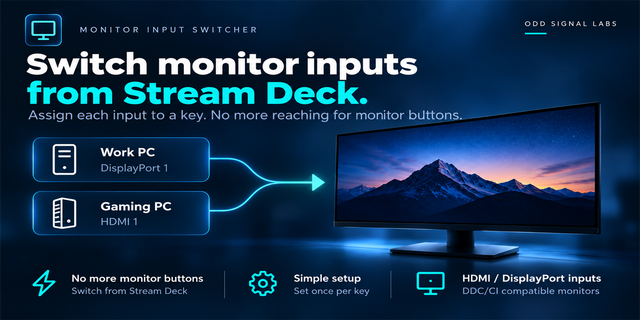
Put your monitor input switch on a Stream Deck key. Switch input between HDMI, DisplayPort and USB-C from one key instead of the on-screen menu, and see the current input source right on the key. Made for a desk shared by a PC, a work laptop and a game console. On a dual monitor desk, Switch Several Monitors moves several monitors to the laptop from one key, each to its own input. It works like the video half of a KVM switch, through the cable you already use, over DDC/CI on Windows.
What you can do
Switch Input: one key per input. DisplayPort 1/2, HDMI 1/2, USB-C, DVI, VGA, or any input code your monitor uses
Switch Several Monitors: up to four monitors on one key, each to the input you pick, for example the left one to USB-C and the right one to HDMI 2. The monitors switch one after the other, and one already on its input is left as it is. If one does not answer, the others still switch and the key shows which display failed
Cycle Inputs: one key steps through the inputs you tick
Multi Actions: all three keys can be steps of a Multi Action (set the key to one press), so one press can switch your screens together with an audio device or a USB switch
Identify: shows each display's number on its screen, so you know which monitor is which while you set up keys
Test: switch once from the key's settings to check the input works
What the key shows
The monitor's current input, and a green frame when it is on the key's input
Two presses by default: the first shows where the monitor will go, a second within 3 seconds switches, so a stray press leaves your screen as it is. One press can be set per key
After a switch, whether the monitor confirmed the new input or left this PC
If a monitor does not answer DDC/CI, the key says so and its settings show the Windows error
The input list marks the inputs each monitor reports
English and Japanese
Privacy
Runs entirely on your PC. No account, no online service, no telemetry. Nothing is sent anywhere.
Writes only the input setting (VCP code 0x60), no other monitor setting.
Requirements
Windows 10 or later, Stream Deck app 6.9 or later, Windows PowerShell 5.1 (part of Windows; some company PCs block it)
A monitor with DDC/CI turned on in its menu (most desktop monitors have it)
Limitations
Over DisplayPort and USB-C, a monitor usually leaves this PC after it switches. Switch it back from the other device (for example a Stream Deck connected to it) or with the monitor's buttons. Over HDMI many monitors stay visible, and a second key switches back
Some monitors switch but do not report their current input; the key then shows "now ?"
Laptop screens, and many docks, adapters, KVM switches and DisplayLink connections, do not pass DDC/CI. Connect the monitor directly
Monitors chained from one DisplayPort output (daisy chain) may all leave this PC when the first one switches. If yours do, put the last monitor of the chain in the first row of Switch Several Monitors
A monitor on a duplicated display is not switched. Use "Extend" in the Windows display settings
Switches the screen only: keyboard and mouse stay with this PC
Idea or bug? Use the Support link. Every message is read.
New Switch Several Monitors action: one key switches up to four monitors, each to its own input; if one does not answer, the others still switch and the key shows which display failed. All actions now work in Multi Actions (set the key to one press). Key settings add Identify (each display's number on screen), Test, and marks on the inputs each monitor reports. Japanese settings labels now follow the Stream Deck app's language.
Version 1.1
Oct 16, 2026
Details
Type
Productivity
Utilities
OS
Windows
Compatibility
Stream Deck 6.9 or later
Size
112.95 KB
Version
1.1
Language
English
Japanese
Support
Profiles
No
Neo Infobar support
No
Dial support
No
Additional links
You might also like

-thumbnail-optimized-9d3e3deb-447a-4904-99e0-f0aae47e1d9e.png)
-app-icon-optimized-98ff788f-ac05-4b68-994a-9fe5917c012e.png)