Audio
OBStream
by Qaem
Overview
OBStream — OBS Studio Control for the CORSAIR XENEON EDGE
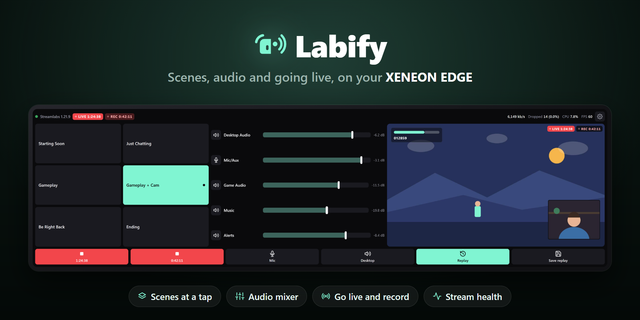
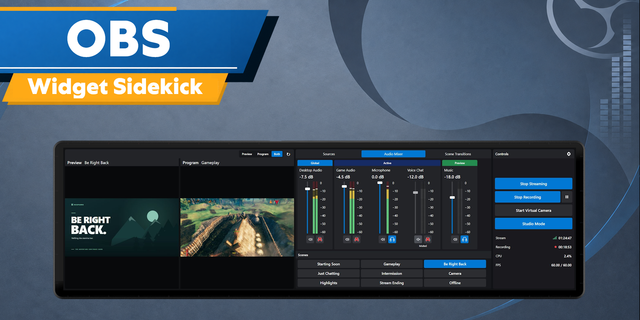
Run your stream from the touchscreen next to your keyboard. OBStream puts OBS Studio on your XENEON EDGE: a live preview of your stream, your scenes at a tap, OBS's audio mixer with level meters, buttons for going live, recording and anything else, and your stream's health at a glance.
No alt-tabbing, no covering your game, no Stream Deck required. OBStream talks to OBS Studio directly through OBS's own WebSocket server, on this PC or on another one by address.
Key Features:
Live Preview
Your Stream's Picture: Edge to edge, at the tile's own size. In studio mode, preview and program side by side.
Light On OBS: It asks OBS for only the frame rate you pick, and pauses when nobody is looking.
Scenes At A Tap
Big Scene Buttons: Every scene as a button. In studio mode, tap once to line a scene up and again to take it live.
Buttons For Everything
Go Live And Record: Start and stop streaming or recording, pause, chapter markers, the replay buffer and the virtual camera.
And The Rest: Studio mode, transitions, mute, volume, show or hide a source, filters, media sources and OBS hotkeys. Add, remove, reorder and recolour them.
Safe By Design: Going live, ending a stream and starting or stopping a recording need a hold or a second tap, so a stray touch never ends your stream.
OBS's Own Mixer
Mixer: Mute buttons, volume faders on OBS's own curve and live level meters.
Stream Health
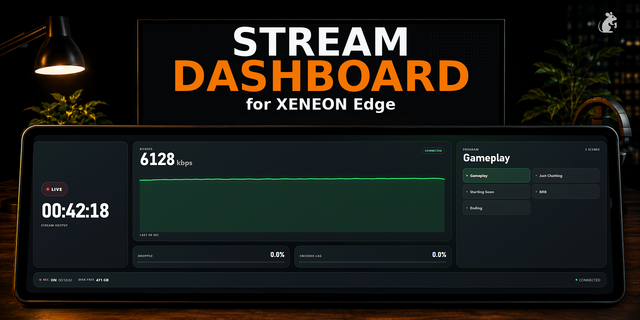
Status: Live and recording timers, bitrate with its last minute, dropped frames, encoding and rendering lag, CPU, frame rate and disk space, turning amber and red as problems grow.
One Widget, Several Jobs
Widget Types: Add OBStream more than once and give each copy a job in iCUE's widget settings: Everything, Preview, Scenes, Buttons, Mixer or Status.
Shared Connection: Copies share one connection. Each copy keeps its own settings, colours and text size, in iCUE's settings or on the touchscreen.
Clear States: OBS closed, its WebSocket server off, a wrong password or Qaem Hub not running: each one shows the fix.
Qaem Hub (Free Companion App, Recommended)
No Setup: With Qaem Hub, QaemDev's free companion app for Windows (qaemdev.com/products/qaem-hub), OBStream connects to OBS on this PC with nothing to type, and Qaem Hub can open OBS for you.
Without It: Type OBS's WebSocket password once in the widget.
Just This Module: Rather not install Qaem Hub? Get the OBS Studio Module, a small app with only this module inside: qaemdev.com/downloads/obs-studio-module-setup.exe. Qaem Hub takes it over, settings kept, if you install it later.
Looks After Itself: Qaem Hub runs quietly in the tray, starts with Windows and keeps itself up to date.
Requirements
OBS Studio 28 or newer on Windows, with its WebSocket server on (Tools, WebSocket Server Settings).
CORSAIR iCUE 5.49 or newer with a XENEON EDGE. On iCUE 5.51 and newer, OBStream may reach OBS on this PC; for OBS on another PC or a changed port, allow it in iCUE Settings, Widget Access.
Privacy
OBStream talks only to OBS and to Qaem Hub on your own PC, or to the address you enter. Nothing is sent anywhere else, and it never reads your stream key.
OBS and OBS Studio are trademarks of the OBS Project. OBStream is an independent product, not affiliated with or endorsed by the OBS Project.
SOME STEPS ARE REQUIRED FOR THE SETUP
SETUP GUIDE: https://qaemdev.com/guides/qaem-hub-setup
OBS Studio on your XENEON EDGE: a live preview, scenes at a tap, OBS's mixer with level meters, buttons for going live and recording, and stream health, in six widget types. With Qaem Hub, the free companion app, there is nothing to set up.
Version 1
Sep 30, 2026
Details
Type
Audio
Gaming
Streaming
Utilities
Video
Device
XENEON EDGE
OS
Windows
Size
76.74 KB
Version
1
Language
English
Support
Dashboard Sizes
Extra large
Large
Medium
Small
Recommended Orientation
Horizontal
Vertical
Interactive
Yes
Additional links
You might also like