Productivity
PeekStripe
by cos scarpa
Overview
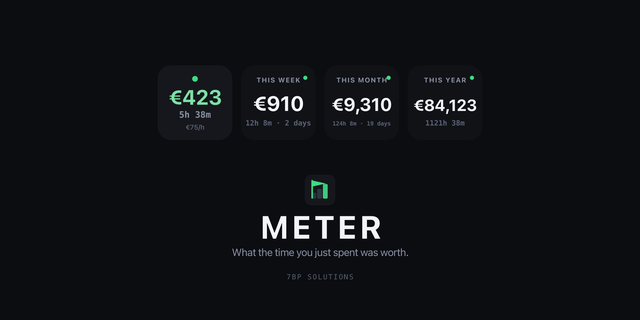
Your Stripe net earnings on a Stream Deck key. Always visible.
PeekStripe shows your Stripe earnings on a key, updated every 15 minutes. Pick a time window, glance at your deck, and move on. No browser tab, no dashboard login.
---
What It Does
PeekStripe shows your net earnings for a period you choose: past 7 days, 4 weeks, 3 months, or 1 year. The number is after Stripe fees, same as what you see in the Stripe Dashboard. A small trend chart below it shows the shape of that period.
Tap the key to open the Stripe Dashboard in your browser. Hold for 2 seconds to force an immediate refresh.
---
Features
Live net earnings — the real after-fee number for the period you choose, updated every 15 minutes in the background.
Four time windows — switch between past 7 days, 4 weeks, 3 months, and 1 year from the settings panel. The chart redraws to match.
Trend chart — a small line chart shows the shape of earnings across the selected period so you can spot a spike or a dip without opening anything.
Three themes — Light (white), Dark (Stripe purple), and Midnight (OLED black). Set per key.
Multi-currency — each key is locked to one currency. No mixing, no surprises.
Multi-key, one fetch — put a 7-day key on one button and a 1-year key on another. They share one background fetch per period, so you never hit Stripe rate limits.
Tap to open Stripe — configurable to open Balances, Payouts, or the Dashboard home.
Hold to refresh — force a sync any time without waiting for the next poll.
---
Setup (about 1 minute)
1. Drag the Balance action onto a Stream Deck key.
2. Open the key's settings panel and pick Live or Test mode.
3. Click Open Stripe Dashboard — PeekStripe opens the Restricted Key creation page for you with the name pre-filled.
4. Create the key with Balance (Read) and Balance transaction source (Read) turned on. Everything else stays off.
5. Copy the rk_ key and paste it into the settings panel. Click Connect.
Done. Your earnings show up on the key straight away.
Note: PeekStripe checks that you are pasting an rk_ key and blocks anything else before making a network call. You cannot accidentally connect with a secret key sk_) or a publishable key pk_).
---
Gestures
Tap - Opens the Stripe Dashboard in your browser
Hold (2 s): Forces an immediate refresh
Stream Deck + encoder: push or touch opens the Dashboard.
---
Privacy & Security
PeekStripe is read-only by design. Here is exactly what it does with your credentials:
Your key stays on your machine. The Restricted Key is stored in Stream Deck's local settings and sent to one place only: api.stripe.com. There is no server, no account to create, and no data stored outside your own computer.
Minimum permissions. The key needs two read scopes under Core: Balance and Balance transaction source. It cannot charge customers, move money, or read payment details. You can revoke it from your Stripe Dashboard at any time.
No analytics, no telemetry. The plugin has no backend and phones home to nobody. Every network call goes directly from your machine to Stripe.
Secret keys blocked. The plugin rejects sk_ and pk_ keys before making any network call.
---
Requirements
- Stream Deck software 7.1 or later
- macOS 10.15 or later, or Windows 10 or later
- A Stripe account with access to Developers > API keys
Not compatible with Stripe Connect sub-accounts. If your balance lives in a connected platform account (for example, Elgato Marketplace payouts), Stripe does not let you create API keys on that account. PeekStripe works with any Stripe account where Developers > API keys is available.
---
Part of the [Microdash](https://microdash.sbs) family of Stream Deck plugins. One-time purchase, no subscription.
What's new?
Better UI in the tile, to make the text easy to read
Improved settings
Better stability, and minor updates.
Version 1.4
Jun 4, 2026
Details
Type
Productivity
OS
Mac
Windows
Compatibility
Stream Deck 7.1 or later
Size
74.18 KB
Version
1.4
Language
English
Support
Profiles
No
Dial support
Yes
Additional links
You might also like