Gaming
Screen Blackout for Windows
by GRAMSHIFT
Overview
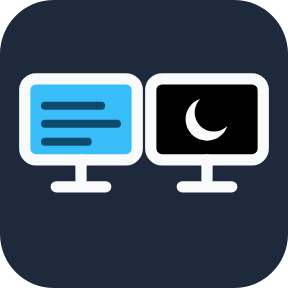
For gaming with a second monitor, OLED owners worried about burn-in, and anyone who leaves the PC running: black out or dim one of your monitors, turn off every screen, and set a shutdown timer or sleep timer, all from your Stream Deck on Windows. Blackout Monitor puts a black screen over the monitor you choose: a privacy screen for a second monitor, a dark side screen while you play, or a screensaver for one monitor, so an idle OLED goes black by itself instead of showing a still image. Screens Off is a monitor off key for every screen, like the Windows "Turn off display" timeout. The Sleep Timer counts down on the key, then sleeps, hibernates or shuts down the PC. The monitor stays powered, so the picture always comes back with a press or a double-click.
Features
Black out one monitor: pick it from the list, or every monitor but the main one. Press again, hold the key, or double-click the black area to bring the picture back
Keep playing: the black window is made not to take the keyboard focus, so your game stays active. It stays out of the taskbar and Alt+Tab, clicks on it do nothing, and it returns on top when you switch windows
Darkness for a press: 100% black (default), or 90% down to 30% to dim a bright second screen and still see it; clicks on it stop there
Auto blackout: choose 1 minute to 1 hour. While its key is on your Stream Deck, a monitor you leave alone that long (pointer and active window elsewhere) goes fully black by itself and comes back when you move the mouse onto it. It can wait while a full-screen game or video plays there (on by default)
Option: uncover while the mouse is on the black screen
Screens Off: every monitor off with one press, optionally locking the PC first
Sleep Timer (shutdown timer): each press adds time (e.g. 15 minutes), or one press starts a fixed time. The key shows the time left and blinks in the last minute. Hold to cancel. At zero: sleep, hibernate, shut down, screens off or lock
English and Japanese
How to use
Drag Blackout Monitor onto a key and choose a monitor in its settings
Press the key to black it out; press again to bring it back
For auto blackout, pick a time and leave the key on your Stream Deck
Questions
Can I black out just one monitor on Windows? Yes. Choose it in the key's settings; the other screens work as usual.
Can Stream Deck shut down my PC after an hour? Yes. Set Sleep Timer's At zero to Shut down and start a fixed time of 1 hour.
Is it good for an OLED monitor? It shows black on an OLED you are not using instead of a still image. The monitor stays on; the benefit depends on the monitor.
Limitations
On a covered monitor, a game in exclusive full screen, the mouse pointer and Windows pop-ups (Start menu, notifications) can still show. An always-on-top window that opens without becoming active can show until you switch windows
Auto blackout counts a monitor as used while the mouse pointer or the active window is on it: to watch a video in a window there (even maximized) while you work elsewhere, make it full screen or turn auto blackout off for that monitor
One screen always stays visible (to turn every screen off, use Screens Off), so a single-monitor PC cannot black out or dim it
Auto blackout and the timer run while their key is shown on the Stream Deck: another page, removing the key or unplugging it turns them off
The timer is not kept through sleep or a restart; it is cancelled, never run late
Sleep needs classic sleep (S3); on Modern Standby PCs, choose another action
Some company PCs block PowerShell; the plugin cannot run there
Privacy
Everything stays on your PC: no account, no network, no telemetry. Auto blackout reads where the pointer and active window are and keeps nothing
Requirements
Windows 10 or later, Stream Deck app 6.9 or later, Windows PowerShell 5.1 (built in)
Idea or bug? Use the Support link. Every message is read.
Darkness: dim a monitor you black out with a press (90% to 30%) instead of fully black. Auto blackout: a monitor you leave alone goes fully black by itself after a time you choose and comes back when you move the mouse onto it; it can wait while a full-screen game or video is on it. Black windows now go back on top when you switch windows.
Version 1.1
Oct 16, 2026
Details
Type
Gaming
Productivity
Utilities
OS
Windows
Compatibility
Stream Deck 6.9 or later
Size
103.82 KB
Version
1.1
Language
English
Japanese
Support
Profiles
No
Dial support
No
Neo Infobar support
No
Additional links
You might also like