Gaming
Star Citizen Edge Control
by FlowKits
Overview
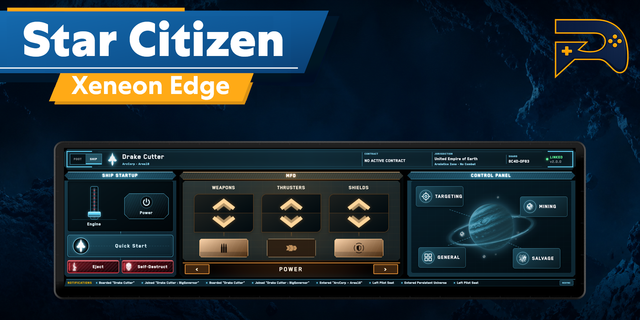
🪐 Star Citizen on the Corsair Xeneon Edge: a real MFD panel for your rig, one that follows your session
✅ Ship controls appear the moment you board, and switch when you get out ✅ Power, shields, modes and targeting, all under your fingers ✅ The Edge Control always displays what you are flying and doing - tracking session, contracts, location and actions. ✅ Always tested on the latest release.
--
🚀 WHAT IT DOES
Star Citizen has more keybinds than anyone remembers. This puts the ones you actually reach for on the Xeneon Edge, laid out and labeled, and even changes them automatically for you while you play.
Board a ship and the panel switches to flight controls to give you your critical controls. Step out and it goes back to your suit, weapon and emotes.
-- SETUP NOTE: This widget requires installation of a small companion app (setup guide has the details) to link with Star Citizen.
💺 IN THE SHIP
Power: weapons, thrusters, shields and coolers, up and down on each
Shields: front, rear, left, right, top, bottom, and a reset
Flight: SCM and NAV master modes, space brake, gear, VTOL, auto land, landing request
Assists: decoupled, cruise, G-safe, ESP, proximity, speed limit
Systems: MFD cycling, mobiGlas, starmap, scan, ping, lights, light amp, head tracking
Targeting: lock, cycle hostile, friendly and attacker, sub-component, pin, decoy, noise, missile arm
Mining and salvage modes, plus eject and self destruct behind a deliberate hold
--
🥾 OUTSIDE / ON FOOT
Suit and view: mobiGlas, flashlight, inventory, helmet, visor wipe, free cam
Weapons: primary, secondary, sidearm, melee, reload, weapon zeroing
Emotes: yay
--
🎨 THE DETAILS MATTER
The panel wears the color of the manufacturer: Anvil, Drake, microTech, Origin, RSI
Or pick your own color, and it sticks
A live feed of your own session
Anything you would regret pressing needs a hold, never a tap
Keybinds are checked against each Star Citizen patch, currently 4.10
--
⚙️ SETUP: 3 steps
This one asks a little of you up front. A screen cannot press keys on its own, so a small free companion app does that part, and reads the game's log so the panel knows what you are in.
Add the widget to a Large or XL slot in iCUE
Download the companion from the setup guide. Run it once. It installs and starts with Windows from then on
Optional: import the included keybind file for extra functionality (recommended)
I wrote a guide for every step: getflowkits.com/setup-companion/star-citizen
--
📋 Worth knowing before you buy
Windows 10 or 11 only
The free companion has to be running. It is not optional, and it is what makes every control work
Windows may show a warning the first time you run it. The guide explains what it means
Built for the Large and XL slots
Everything runs locally on your PC
--
Disclaimer
This iCUE widget is an independent creation, not affiliated with or endorsed by Cloud Imperium Games or Roberts Space Industries. Star Citizen and related marks are trademarks of Cloud Imperium Games Corporation, used solely to identify compatibility. Background imagery in marketing images is made using screenshots by http://hasgaha.com
Fixes panels that stopped connecting. iCUE added a permission system, and a widget that does not declare its connection is blocked silently: the panel draws normally, the companion never hears from it, and nothing shows up in any log. This version declares it.
⚠️ Import this one and check it loads before you remove the old widget. iCUE adds rather than replaces, so you will briefly have two.
--
😀 Emotes: sixteen, four across
More emotes, because why not?
--
⏱️ Slight update to UI panels
Session counted from when Star Citizen started, so it is right even if you launch the companion mid-session. Updated companion required.
Version 1.0.5
Sep 16, 2026
Details
Type
Gaming
Device
XENEON EDGE
OS
Windows
Size
325.9 KB
Version
1.0.5
Language
English
Support
Dashboard Sizes
Extra large
Large
Recommended Orientation
Horizontal
Interactive
Yes
Additional links
You might also like




-thumbnail-optimized-018e88da-72f7-480a-a443-711f82fd0c7f.png)