Business
Teams Meeting Controls
Overview
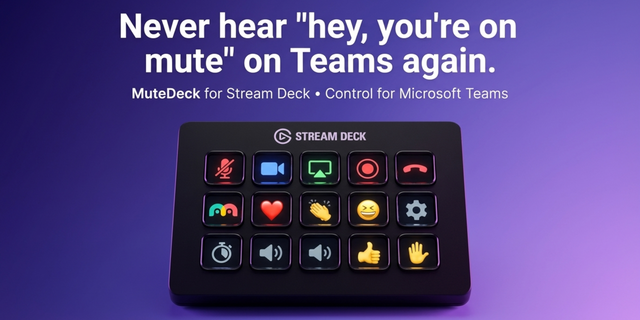
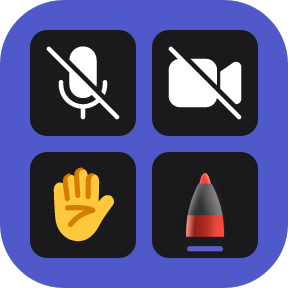
Control Microsoft Teams from your Stream Deck: mute, camera, webcam switching, background blur, raise hand, reactions, screen share, chat, people and leave. Every key shows the real state of the meeting, so a muted mic looks muted before you press it.
Change Camera switches Teams to the webcam you pick, capture cards and virtual cameras included, and Swap Camera flips between two. Neither turns your video on or off.
Full PowerPoint Live control too. Watching a deck? Move through slides at your own pace, jump back in sync, open grid view, or pop the deck into its own window, without touching anyone else's view. Presenting? Slide navigation, laser pointer, pen, highlighter and eraser, presenter view, private view and stop sharing, with a live slide counter. Keys follow your role.
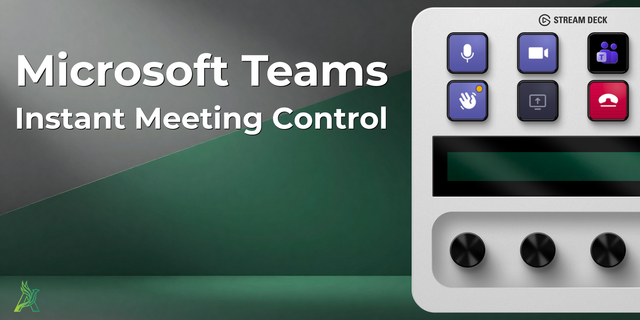
On a Stream Deck + or + XL the dials set ink color and thickness, move through the deck and run the meeting timer, and the touch strip shows the current and next slide.
Three bundled profiles can follow the meeting: meeting controls when you join, attendee or presenter tools when a deck goes up, and back again when it ends. Every Stream Deck gets its own set.
Teams never needs focus: keep working while you mute, react or raise your hand. No keystrokes are sent, so nothing leaks into what you type, and no hotkeys are taken. Keys dim when no meeting is running.
Requires Windows 10 or later (MacOS is supported as a Preview), Stream Deck 7.1 or later, and the Microsoft Teams desktop app. Not affiliated with or endorsed by Microsoft.
Installs on Windows again, and brings webcam switching with it.
BACK ON WINDOWS
The previous version, 1.11.0.17, was a macOS test build published by mistake. It could not be installed on Windows, and macOS is not supported yet. This version restores the Windows plugin, with everything 1.11.0 was meant to bring.
SWITCH WEBCAMS!
Two new keys in the Teams Meeting Controls category, for anyone with more than one camera.
Change Camera switches Teams to the webcam you pick in the key's settings. Give each camera its own key and move between them with a press.
Swap Camera flips between two webcams you pick, so one key takes you from a face camera to an overhead one and back.
The settings list every camera Windows reports, capture cards and virtual cameras included, and switching never turns your video on or off. Swap Camera checks which webcam Teams is using on every press, so changing camera in Teams itself never puts it out of step.
STAYS OUT OF YOUR WAY
Keys that open a Teams menu, such as reactions, raise hand and background blur, no longer pull Teams in front of the window you are working in. While a PowerPoint Live deck is on screen Teams can still appear for a moment, and your window comes straight back.
FIXED
The Background Blur key shows blur as off once you turn it off, instead of staying highlighted.
Version 1.11.1
Oct 23, 2026
Details
Type
Business
Productivity
Utilities
OS
Windows
Compatibility
Stream Deck 7.1 or later
Size
19.53 MB
Version
1.11.1
Language
English
Support
Neo Infobar support
No
Profiles
Yes
Dial support
Yes
You might also like