Gaming
TeamSpeak 6 Channel
Overview
TeamSpeak 6 Channel
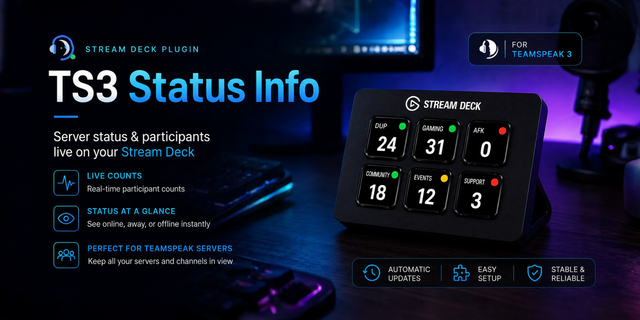
See who's in your TeamSpeak channel — without ever leaving your game.
This widget puts your current TeamSpeak 6 channel right on your iCUE display: the channel name, everyone in it, who is talking and who is sharing their screen. Your own microphone, speaker and screen-share status sits in the top-right corner, so a quick glance tells you whether you're muted before you start talking.
What you see
Channel header — the name of the channel you're in and the number of people in it. Spacer markup like [cspacer] is removed automatically
Server name — optional line above the channel name
Your status — microphone and speaker icons (red when muted), plus a screen-share icon while you are sharing
User list — everyone in the channel, with your own name pinned to the top
Live speaking indicator — a green dot and green name while someone is talking
Screen sharing — a green icon for everyone sharing their screen, greyed out while the stream is paused
Away users — dimmed with a clock icon when a user is AFK
Mute icons — see at a glance who has their mic or sound turned off
Overflow counter — a "+N more" line when the channel is bigger than the display
The layout scales itself to your display, from compact keyboard screens to large dashboards, and splits the user list into multiple columns on wider screens.
Make it yours
Adjust the size of text and icons (50–200 %) and the maximum number of names shown. Toggle the channel header, the server name, per-user status icons, speaking highlights, and whether your own name appears in the list. Background, text, accent, speaking, muted and screen-share colors are all configurable, so the widget matches the rest of your setup.
How it works
The widget connects to the official TeamSpeak Remote Apps interface on your own PC — no server plugin, no third-party service, no account. Enable Remote Apps in TeamSpeak under Settings → Remote Apps and approve the request once; after that it connects automatically and reconnects on its own if TeamSpeak restarts.
On iCUE 5.51 or newer, also allow the widget to reach TeamSpeak: iCUE → Settings → Widget Access → TeamSpeak 6 Channel → allow 127.0.0.1.
Requirements
Windows
iCUE 5.47 or newer (on iCUE 5.51, use 5.51.42 or newer)
TeamSpeak 6 client running on the same PC, with Remote Apps enabled
Available in English and German — the widget follows your iCUE language setting.
New
- Screen sharing: a green icon shows who is sharing their screen. It greys out while the stream is paused — always for your own stream, and for other users while you are watching theirs.
- Away icon: users who are AFK now get a clock icon in addition to being dimmed.
- Server name: optional line above the channel name (Settings → Show Server Name).
- Size slider: scale text, icons and spacing from 50 % to 200 %. Large displays now also scale up automatically.
- Channel names are cleaned up: spacer markup such as [cspacer] or [*spacer1*] is removed, so you see the actual name.
- New color setting for the screen-share icon.
Fixed
- The widget no longer loses its TeamSpeak authorization after a short disconnect, so you are not asked to approve it again.
- Clearer hint when the widget cannot connect.
Important after updating
- Restart iCUE once so the new settings take effect.
- iCUE 5.51 or newer: open iCUE → Settings → Widget Access → TeamSpeak 6 Channel and allow 127.0.0.1. Please use iCUE 5.51.42 or newer — 5.51.40 blocks widgets even when access is allowed.
Version 1.1
Sep 22, 2026
Details
Type
Gaming
Social
Device
AIO LCD Screen
H100i ELITE CAPELLIX
H100i ELITE LCD
H100i ELITE LCD XT
H115i ELITE CAPELLIX
H115i ELITE LCD XT
H150i ELITE CAPELLIX
H150i ELITE LCD
H150i ELITE LCD XT
H170i ELITE CAPELLIX
H170i ELITE LCD
H170i ELITE LCD XT
iCUE LINK H100i LCD
iCUE LINK H150i LCD
iCUE LINK H170i LCD
iCUE LINK TITAN 240 LCD
iCUE LINK TITAN 280 LCD
iCUE LINK TITAN 360 LCD
iCUE LINK TITAN 420 LCD
iCUE LINK TITAN II 240 LCD
iCUE LINK TITAN II 360 LCD
iCUE LINK XC7 ELITE LCD
iCUE LINK XD5 ELITE LCD
iCUE LINK XD6 ELITE LCD
NAUTILUS LCD CAP
VANGUARD 96
VANGUARD 96 WL
VANGUARD AIR 99 WL
VANGUARD PRO 96
XENEON EDGE
OS
Windows
Size
53.08 KB
Version
1.1
Language
English
German
Support
Dashboard Sizes
Extra large
Large
Medium
Small
Recommended Orientation
Horizontal
Interactive
No
You might also like