Productivity
Tickwork
Overview
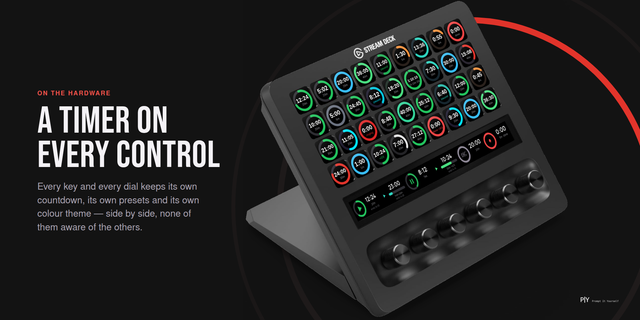
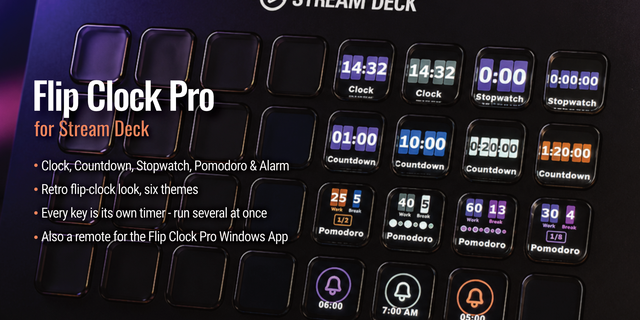
Most timer plugins hand you a countdown and a stopwatch as two separate actions, and every key is an island. Tickwork gives you one Timer action that can be any kind of clock, sequences that run themselves, and group keys that drive a whole set.
FIVE KINDS OF CLOCK, ONE ACTION — Drop a Timer key and choose what it measures. No hunting through five actions for the one you want, and you can change your mind later without replacing the key.
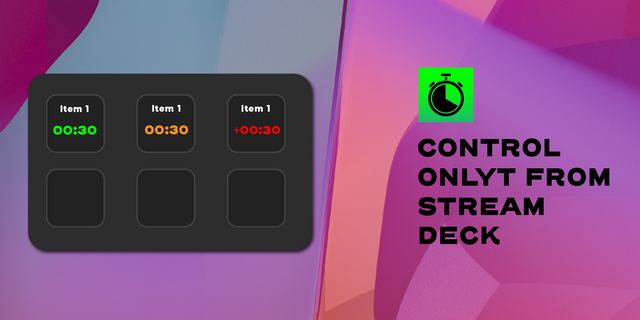
COUNTDOWN — Any duration up to a week. It may run past zero and keep counting, in red, so a timer you ignored says how late you are instead of sitting quietly at 0:00. Or have it stop dead at zero, or start itself again.
STOPWATCH — Counts up from zero with no target. For takes, calls, renders — anything where the question is how long this has been going.
INTERVAL — A list of named phases that hand over from one to the next on their own. Set how many times to run the list, or zero to let it go forever. Press start once and the sequence looks after itself: 25 minutes of work then 5 off, four times through. Starting points for the common ones are built in, and you can write your own in seconds or mm:ss.
DEADLINE — A fixed point in the calendar. Days and hours while it is far off, to the second once it is close, and it counts whether or not anyone pressed the key: a ship date exists either way.
DAILY — A time of day that comes round again: end of the working day, a stand-up, the school run. Once today's has passed it rolls to tomorrow, so the key never sits on a stale zero.
GROUP CONTROL — The part a drawer full of separate timers cannot do. Give clocks a group name and one Group Control key starts, pauses, resets, skips, laps or silences every clock in it at a press. Toggle reads the group as a whole: if anything is running it stops everything, otherwise it starts everything. Leave the group blank and the key means every clock you have, and shows how many.
READ IT FROM ACROSS THE DESK — Every key reads the same way, whatever it measures. The colour is how it is going: grey paused, green running, amber under a minute, red past zero. Intervals show the phase name, the round, and a pip per phase.
FOUR WAYS TO SHOW THE TIME — Pick per key: a ring around the edge, tidy on a deck of many clocks; an hourglass, where the whole key drains, which reads from across the room without being looked at; a bar along the foot; or a clock face, which says which part of the time has gone rather than how much.
IT CAN RING, IF YOU WANT IT TO — An optional sound at the end. Three tones, with a Play button beside them, since a sound is the one setting nobody can judge by its name. Intervals ring at every phase, and a small bell on the key shows which clocks are armed before they go off. Leave it off and nothing beeps, nothing pops up, nothing to dismiss.
OR AN ALARM YOU HAVE TO ANSWER — Set it to keep ringing until the key is pressed, and it does not give up: after a few minutes it rings less often rather than stopping. An interval set this way waits at every boundary instead of starting the next phase into an empty room, so a break you were not there for is still waiting when you get back, with its full length. Any Control key answers a waiting alarm first.
STOP AFTER — A timer left overrunning since Friday has stopped telling you anything. Give it a limit and it stops on its own: a minute past the end, four hours, or never.
Every key presses the same way: tap to start or pause, hold to reset.
Every figure comes from the system clock rather than a count of ticks, so a busy machine, a sleeping laptop or a restart of Stream Deck cannot make a clock drift. A running timer keeps the time it should have while you were away.
No account, no sign-in, no network, no analytics. Your timers live in Stream Deck's own settings, on your machine.
Any Stream Deck with keys, on macOS + Windows. Requires Stream Deck app 7.1+.
A Daily clock can have a start
New setting for Daily clocks: "The day starts at a set time". Give it 09:00 and an end of 19:00, and the ring, hourglass, bar or clock face is full at nine and empty at seven: it shows how much of your working day is left.
Until now the indicator always drained across the whole 24 hours from one occurrence to the next. A key set to 19:00 was more than half empty before the day began and had almost nothing left to show all afternoon, which is why it looked plain grey.
Before the start the indicator waits, full. A start later on the clock than the end is a night shift and works the same way.
Existing Daily clocks are unchanged until you give them a start.
The hourglass shows on the key
The Hourglass indicator drew nothing on a real Stream Deck. It relied on a drawing feature the Stream Deck app does not have, so the liquid was left out. It is now drawn without it and fills and drains as intended, on every kind of clock.
The small text on a lit, ringing key is drawn in a plain colour for the same reason.
Version 1.2.4
Oct 13, 2026
Details
Type
Productivity
Utilities
OS
Mac
Windows
Compatibility
Stream Deck 7.1 or later
Size
257.08 KB
Version
1.2.4
Language
English
Support
Neo Infobar support
No
Profiles
No
Dial support
No
You might also like