Monitoring
Top Process for Windows
by GRAMSHIFT
Overview
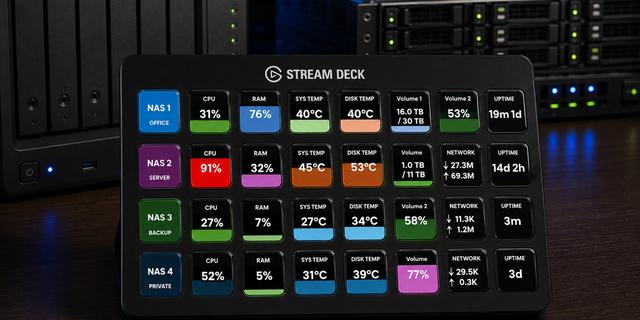
See on your Stream Deck which app is using the most CPU or memory on your Windows PC right now. When the PC gets slow, the key names the app before you even open Task Manager.
Features
Top CPU: the name of the app that uses the most CPU now and its share (100% = all cores)
Top Memory: the app that holds the most memory and how much (GB or MB)
Show the top app, or the top three on one key
App Watch: the CPU and memory of one app you pick from the running apps, or "not running"
A browser and its helper processes count as one app
The key turns red from the limit you set
Press: open Task Manager
English and Japanese
What the numbers are
CPU: the processor time the app used, divided by all logical processors, read every 2 seconds and averaged over about 6 seconds
Memory: the private working set (memory in use that belongs to that app alone). Task Manager can show a slightly different number
Names are program file names without ".exe" (for example "explorer")
Privacy
The names of your running apps are read to draw the keys. Nothing is saved or sent anywhere.
Requirements and limits
Windows 10 or later, Stream Deck app 6.9 or later
Read only: it does not end, slow down or change any app or setting
A process that just started shows after a few seconds
No GPU, disk or network use per app
When Windows does not answer, the keys show "--"
Idea or bug? Use the Support link. Every message is read.
First release with three actions. Top CPU and Top Memory name the app that uses the most right now (or the top three). App Watch shows the CPU and memory of one app you choose. Reads the Windows performance counters, or the process list where those do not work. Read only. English and Japanese.
Version 1
Oct 9, 2026
Details
Type
Monitoring
Productivity
Utilities
OS
Windows
Compatibility
Stream Deck 6.9 or later
Size
798.36 KB
Version
1
Language
English
Japanese
Support
Profiles
No
Dial support
No
Neo Infobar support
No
Additional links
You might also like