Artistic
Lightroom Classic Control
by FlowKits
Overview
📸 Cull and Edit in Adobe Lightroom Classic on the Xeneon Edge
Flag, rate, then edit your photos with touch controls. Lightroom Classic Control widget puts that whole pass at your finger-tips on the Xeneon Edge ⚡
--
✅ Culling, ratings, develop sliders, zoom and presets all reachable at once on a full-size slot.
✅ Two-way sync. Drag Exposure on the Edge and Lightroom moves. Move it in Lightroom and the widget follows.
✅ Undo and Redo on the panel, driven by Lightroom's own undo stack.
A full session, hands on the glass.
SETUP NOTE: This widget requires installation of a small companion app (setup guide has the details).
--
⚡ Why You'll Love It
A cull is a thousand small decisions, each one costing a reach for the keyboard. So Pick and Reject are the biggest targets on the panel, stars carry their numeral, color labels sit beside them, and auto-advance moves you on the moment you flag a frame.
Toggle to Develop and the same panel becomes thirteen Basic sliders at a size your finger can land on.
--
🔄 It Follows the Module You're In
Switch Lightroom to Library and the widget rearranges into the cull surface. Switch to Develop and the sliders come back. The module tabs work in reverse too, so you can move Lightroom itself from the Edge.
--
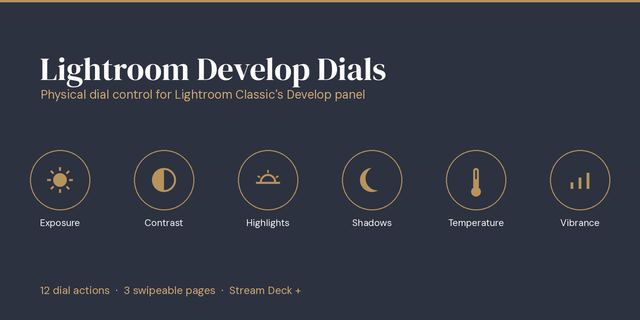
🎚️ Develop Sliders Built for Fingers
Intuitively edit your slider values with your finger. Double-tap resets.
--
📦 What's Inside
Full Basic panel in Lightroom's own order, plus Tone Curve, HSL, Detail and Effects
Cull surface with Pick, Reject, 1 to 5 stars, color labels, rotate and auto-advance
Filename, resolution, file type, ISO, aperture, shutter and focal length up top
Your real preset catalog, browsed by folder, favorites pinned to the top
All eight Edge slot sizes, horizontal or vertical, with a six-slider pick for the small slot
Idle dim with your own delay and depth
--
🔌 NOTE: The Companion Plug-in
Lightroom Classic has no way to talk to iCUE on its own. A small FlowKits plug-in on the Lightroom side opens that connection. You add it once through Lightroom's Plug-in Manager and never think about it again.
Download it here: getflowkits.com/setup/lightroom-icue-companion/
--
🚀 Quick Install
Install the widget in iCUE and place it on your Edge dashboard.
Download the companion plug-in: getflowkits.com/setup/lightroom-icue-companion/ and unzip it.
In Lightroom Classic go to File, then Plug-in Manager, click Add and pick the Xeneon-LrC-Companion.lrdevplugin folder.
That's it. The widget connects a couple of seconds later, no Lightroom restart needed.
--
⚙️ What You Need
Corsair Xeneon Edge with iCUE 5.47 or newer
Windows 10 or 11, since iCUE widgets are Windows only
Adobe Lightroom Classic (Version 15 or later)
--
🎯 Perfect For
Hobbyists and professionals alike. A weekend of scenery shots, a wedding cull running into the thousands, an afternoon spent inside the slider panels. If you own a Xeneon Edge and want something tactile to edit with, this is it.
🎚️ Less Thinking, More Creating.
--
Disclaimer
This widget is an independent creation by FlowKits, not affiliated with, sponsored by, or endorsed by Adobe Inc. or Corsair. Adobe and Lightroom Classic are trademarks of Adobe Inc., used solely to identify compatibility. Photography by Saorsa Studio (saorsastudio.co.uk), with permission.
Lightroom Classic Control 1.0.2
The widget now tells you when an update is available.
The setup screen no longer asks you to install the plug-in when you already have it running.
The Launch button is hidden when there is nothing for it to launch.
The widget version is shown in its settings panel.
Updated for iCUE 5.52 (and beyond), which asks your permission before a widget connects to its companion.
Version 1.0.2
Sep 24, 2026
Details
Type
Artistic
Business
Productivity
Device
XENEON EDGE
OS
Windows
Size
204.33 KB
Version
1.0.2
Language
English
Support
Dashboard Sizes
Extra large
Large
Medium
Small
Recommended Orientation
Horizontal
Vertical
Interactive
Yes
Additional links
You might also like